Oath Card Submissions
Oath Card Submission Information
- From your VACES Home Page, click Oath Card Submission to display submission information and upload document for Oath Card Submission.

Documents
- In the Documents section, click Browse to locate the file for submission. A system window will appear allowing selection of the file for uploading.
Important Note: VACES only accepts PDF documents.

- Highlight the file needed and then click OK or Open. The document will appear in the Documents section with the file name in the Name section and the Type as Oath Card.

- As an alternative, the user may select the document needed and drag and drop into the patterned box.
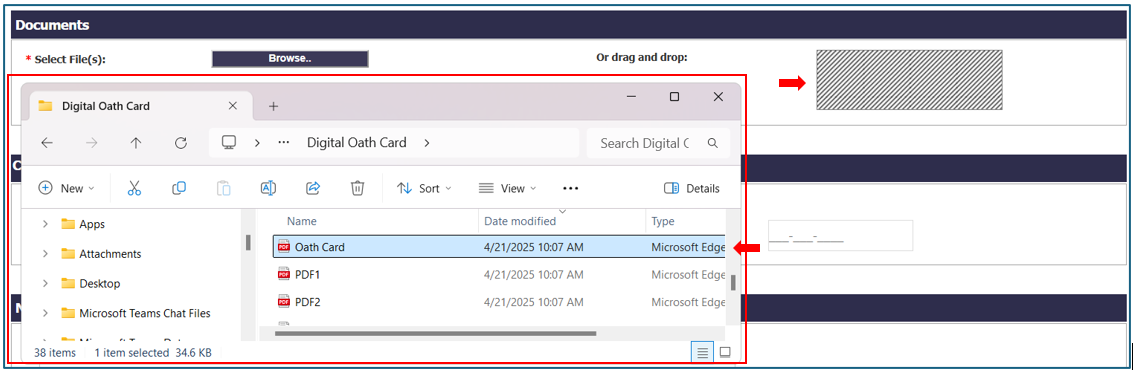
- To delete an uploaded file, select the Red X icon in the Actions column.

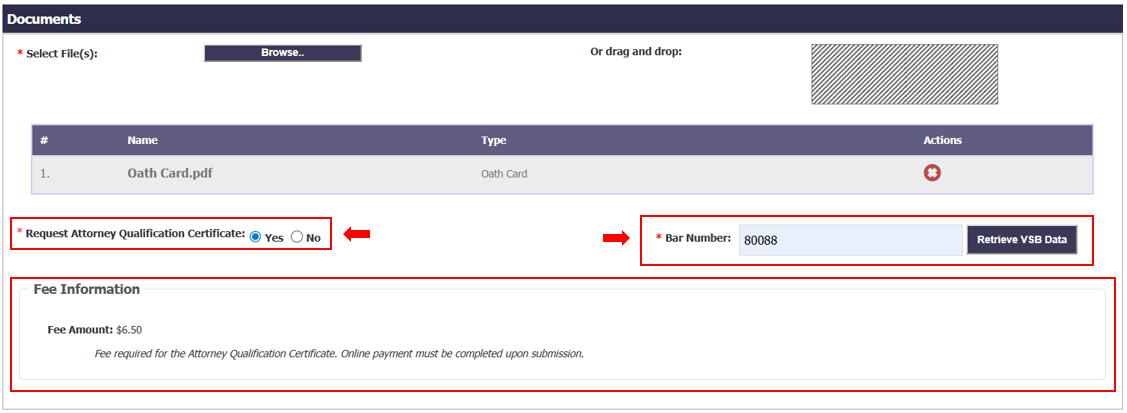
Request Attorney Qualification Certificate
- Choose Yes to request an Attorney Qualification certificate, or No if you do not wish to request one.
- Fee Information section will appear for Request Attorney Qualification Certificate selection of Yes.
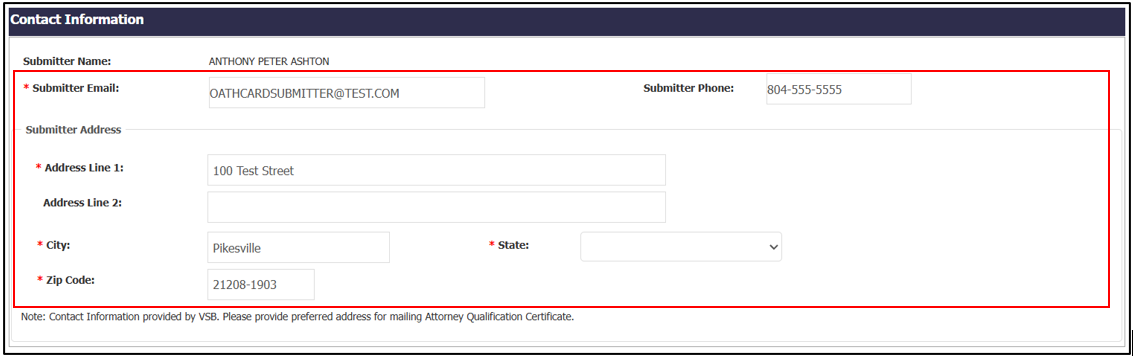
- Enter the Bar Number and click Retrieve VSB Data. Submitter address shall be retrieved from VSB and populated in the Contact Information section.
Contact Information
- In the Contact Information section, enter or edit the information, if needed.
Note: Contact information provided will be used to mail the Attorney Qualification Certificate.
Notes
For each oath card submission, you may enter any pertinent notes in the Notes text box. The box has a 1,000-character limit and the message on the side of the text box will indicate how many characters remain.

Fee Summary
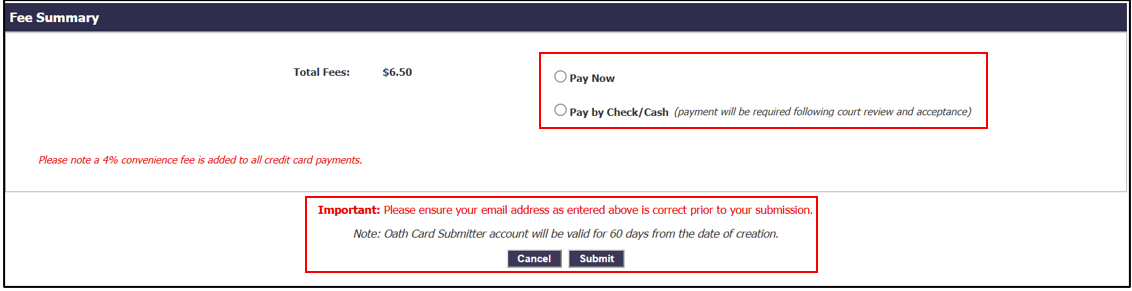
The Fee Summary appears below the Notes section. The summary is for fees that will be charged or due once the oath card has been submitted and accepted.
Note: The Fee is displayed only if the Attorney Qualification Certificate is requested by choosing Yes.
- Review the Fee Summary.
- If present, select Pay Now or Pay by Check/Cash to continue.
Note: See Payment Processing for more information on how to pay fees.
Oath Card Submission and Document Upload
- Once all required information is entered and the oath card attachment is listed, at the bottom of the page click Submit to submit your filing and upload the oath card.
- The file upload progress screen may appear and display the progress of the file being uploaded by the system. It may also flash briefly or may not appear at all.
- If during the oath card submission, a filer encounters an issue during the upload process, the system will prevent the document from uploading further. The document will need to be resubmitted.
Submission Summary
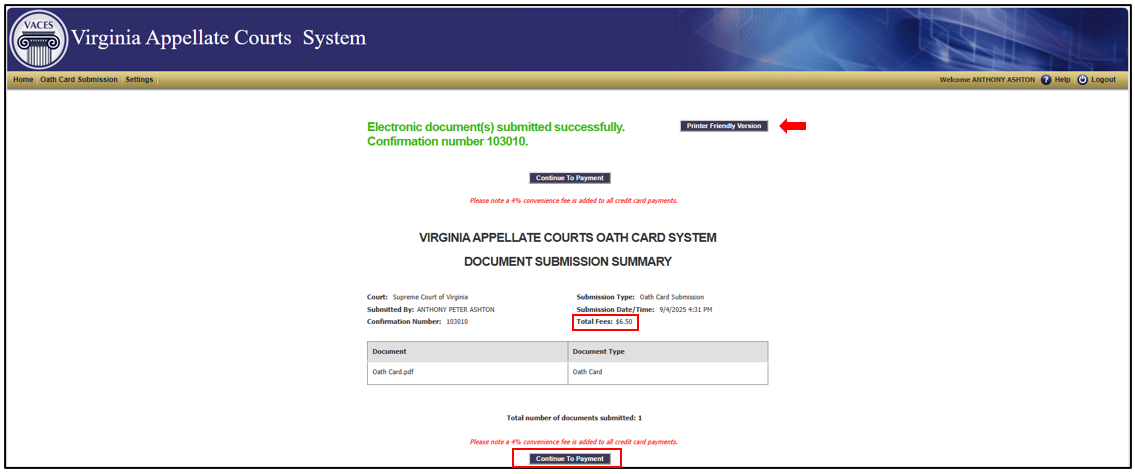
Once the system completes the upload process successfully, a confirmation screen will display, confirming the user's Submission Summary for the filing in which the document was attached.
- Users can print the confirmation of the submission. To print: click the Printer Friendly Version button on the top right of the page.
-
If you chose Pay Now, select Continue To Payment. See Payment Processing for more information on paying fees by providing credit card information.
-
If you chose Pay by Check/Cash, payment is due after the court has reviewed and accepted the oath card submission. When notified by email of oath card submission/review, and acceptance by the court, complete
the payment by check or cash to the Supreme Court of Virginia.